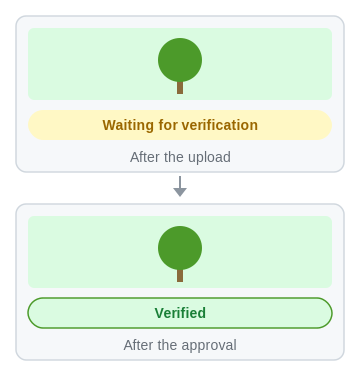
This page follows one capture through the Greenstand system. A capture is one photo of a tree, with its GPS point and some data. A grower takes it with the Treetracker app.
Chapter 1 follows the capture from the grower’s phone to the grower’s reward. This page says “grower”. Older code and tables say “planter” for the same person.
Best guess No public source confirms this. A Greenstand maintainer will review it.
Not working today The code has it, but it does not work or does not run today.
Sign up onceCheck the photo
Stage 1 of 6
On the phone: the grower takes a capture
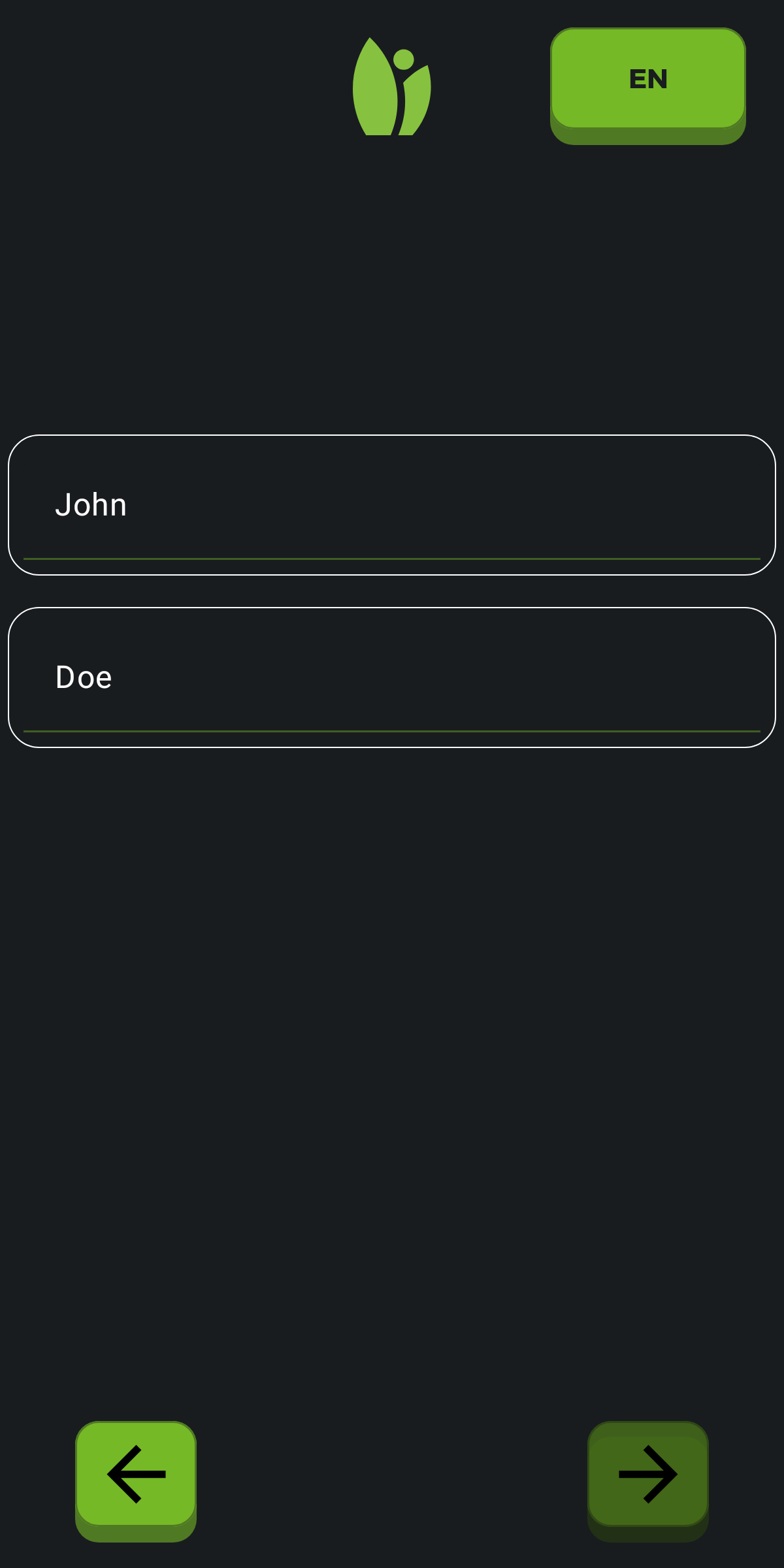
The grower opens the Treetracker app on an Android phone. On the first day, the grower signs up with a name, a phone number or an email, and a selfie. On later days, the grower picks a name from a list on the phone.
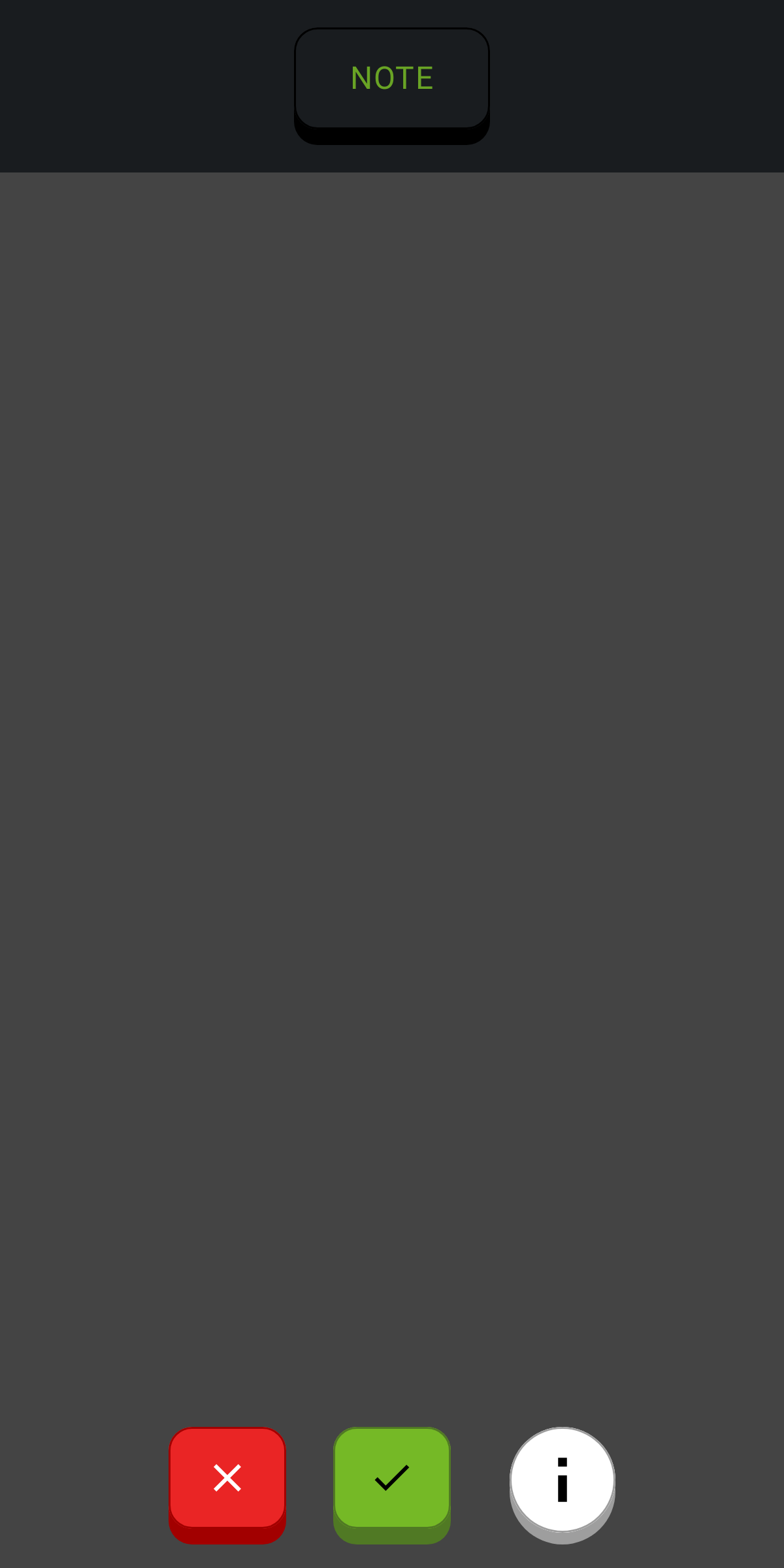
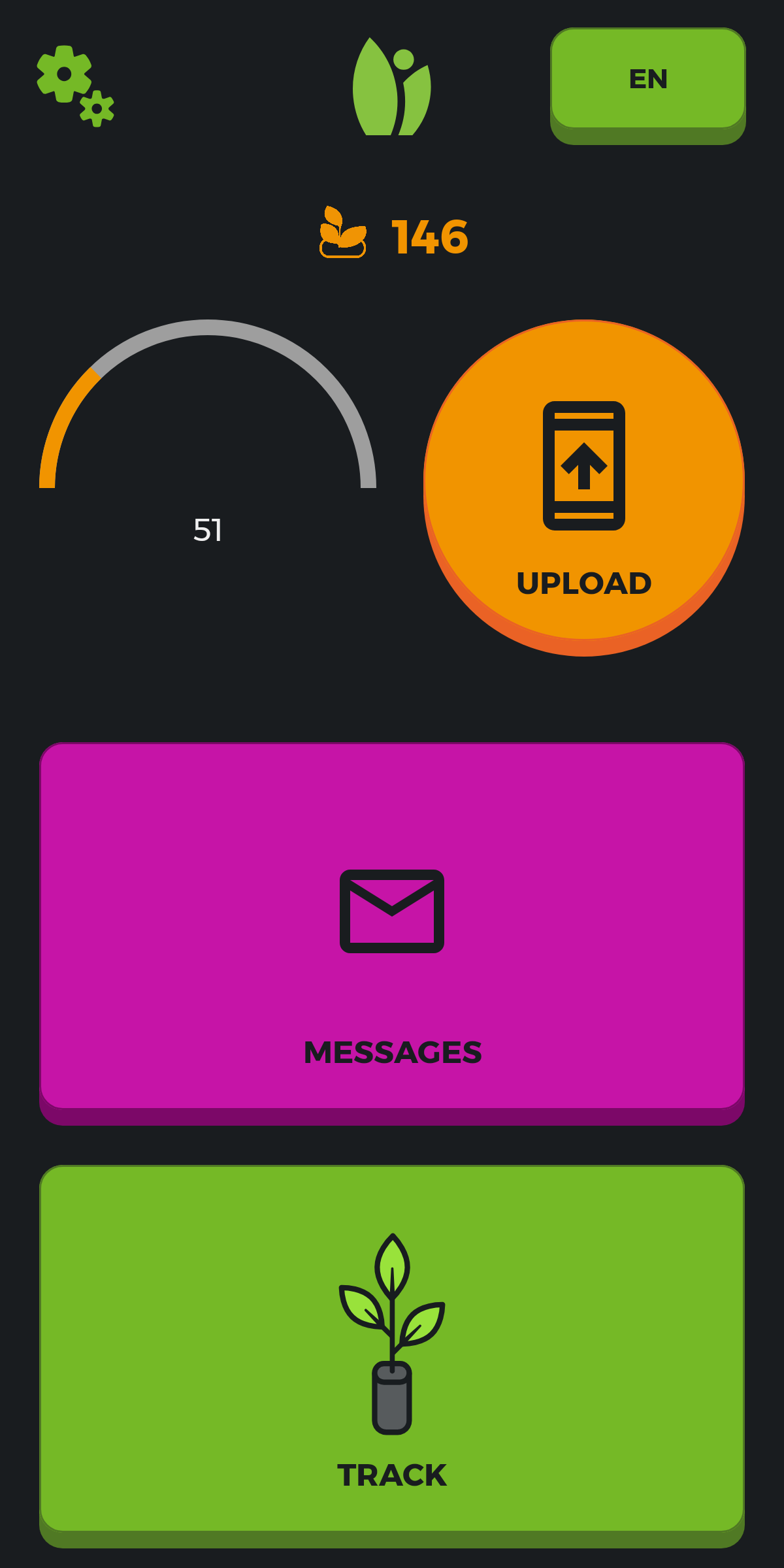
The grower walks to a young tree and taps TRACK. The app waits until the GPS point is stable. The grower takes a photo of the tree, checks it, and can add a note. The app keeps the photo and the GPS point on the phone, so the grower needs no network.
For developers
The repo, the file, and the lines at the commit that this page describes.
Later, in a place with internet, the grower taps UPLOAD. The app sends each photo to cloud storage. Then it sends a small data file, a “bundle”. A bundle lists up to 50 captures: where, when, and which photo.
The app then marks each capture as uploaded and deletes the photo from the phone.
For developers
The repo, the file, and the lines at the commit that this page describes.
The bundle chain: four small services open the bundle
Cloud storage tells a small Greenstand service that a new bundle arrives. That service keeps the bundle. Every 5 minutes, a second service opens the new bundles. A third service passes each capture on to the service that stores it. A fourth service, the older path, also gets each capture. It stores the older tree record itself, if that record is not there yet.
These four services are public Greenstand repos. They are not in the docs repo yet, so they have no viewer.
Best guess The second service still runs every 5 minutes today.
For developers
The repo, the file, and the lines at the commit that this page describes.
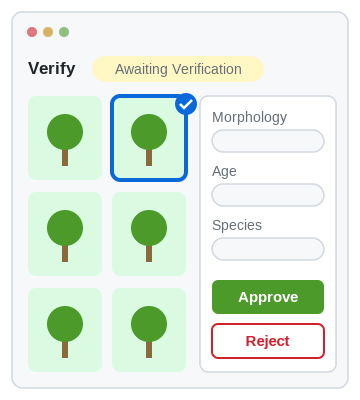
A drawing of the Verify page (no public screenshot exists)
Stage 5 of 6
Verification: an admin checks the photo
An admin signs in to the admin panel and opens the Verify page. The page shows a grid of photos that wait for verification. The admin looks at each photo.
The admin approves the photo, with the type of planting, the age of the tree, and the species if the admin knows it. Or the admin rejects it, with a reason, for example “Not a tree” or “Blurry photo”. On the web map, an approved capture shows “Verified”. A rejected capture is not active any more, so the map hides it.
Best guess An automatic job copies the decision into the newer tables.
For developers
The repo, the file, and the lines at the commit that this page describes.
In the code, one organization has a payment rule. An automatic job counts the approved captures of each of its growers. It pays in steps of 100 captures: 100 captures give 120,000 leones, and 1,000 captures or more give the maximum, 1,200,000 leones. The job writes an “earning” with the status “calculated”.
Greenstand’s guide to earnings and payments gives the next steps for a typical case. In that case, a funder does them. A funder is the person or the organization that pays for the captures. The funder opens the Earnings page of the admin panel and downloads the list. Then the funder pays each grower outside the Greenstand system. Last, the funder logs the payments. The funder logs one earning in its detail panel, or many earnings with a file upload on the Payments page. Each logged earning becomes “paid”. The guide says that the growers can see the payment data. But the Treetracker app and the wallet app have no earnings screen. So the grower learns about the money from the payment itself.
Best guess The organization is FCC, which we think is Freetown City Council. The job and the payments still run today. (The code shows no change since 2023.)
Not working today The wallet app tells each new user “we will gift you 1 token”. The token does not arrive today. treetracker-wallet-app #914
Tokens are not a grower reward today. An operator can start a job that puts one token for each approved capture of an organization’s growers into a wallet that the operator names. Greenstand’s white paper describes a goal, not the code of today. In that goal, each capture becomes a token in the wallet of the entity that is responsible for the tree. When claims conflict, the grower comes first. The token also holds a proof of the payment to the grower. The token job of today does not use the wallet of the grower, and no token holds payment data. See chapter 3: The capture as an impact token.
For developers
The repo, the file, and the lines at the commit that this page describes.